1
Drop a video
Drag any video onto the Playbeam icon in your menu bar.

TV, phone or tablet — over your own Wi‑Fi. Nothing to install on the other device.

New in 1.2 · Play on TV
Click TV in Playbeam, pick a smart TV on your network, and the video starts on it. The TV plays the file itself, so nothing is converted on the way.
Works with smart TVs that support DLNA. Which formats play depends on the TV — and the free 10 minutes a day are there so you can find out on yours.
How it works
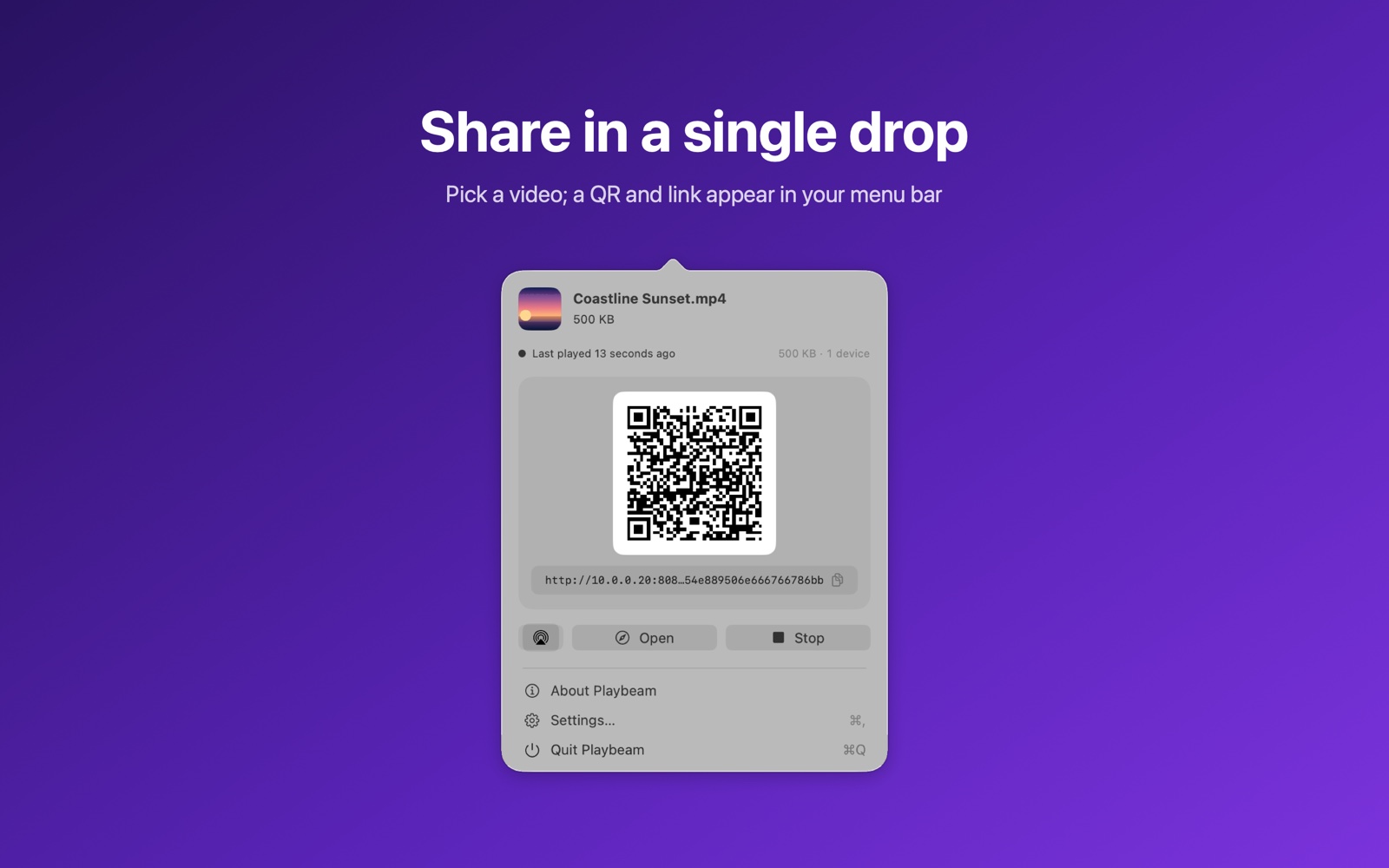
Drag any video onto the Playbeam icon in your menu bar.
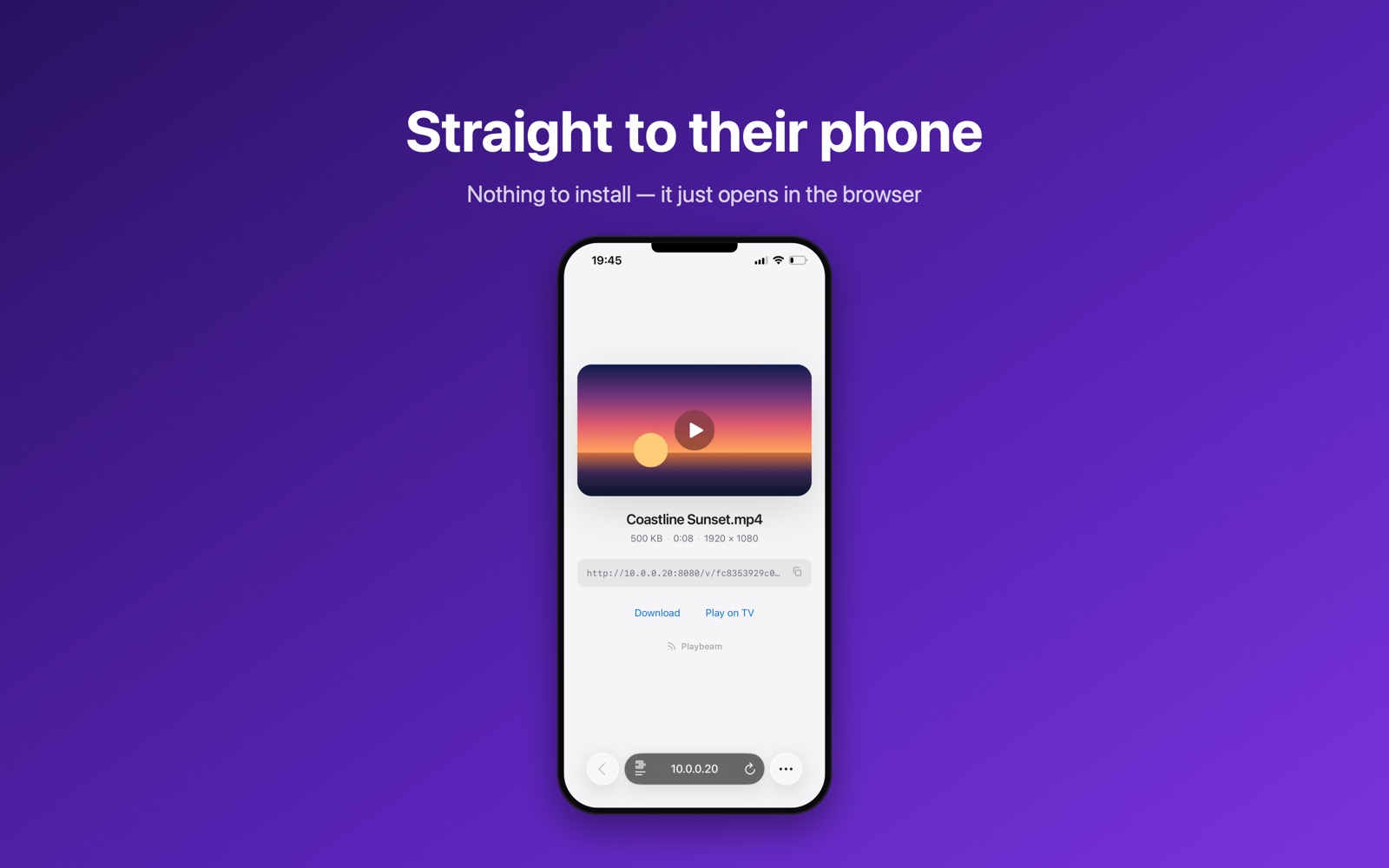
A QR code appears. Scan it with your phone’s camera.
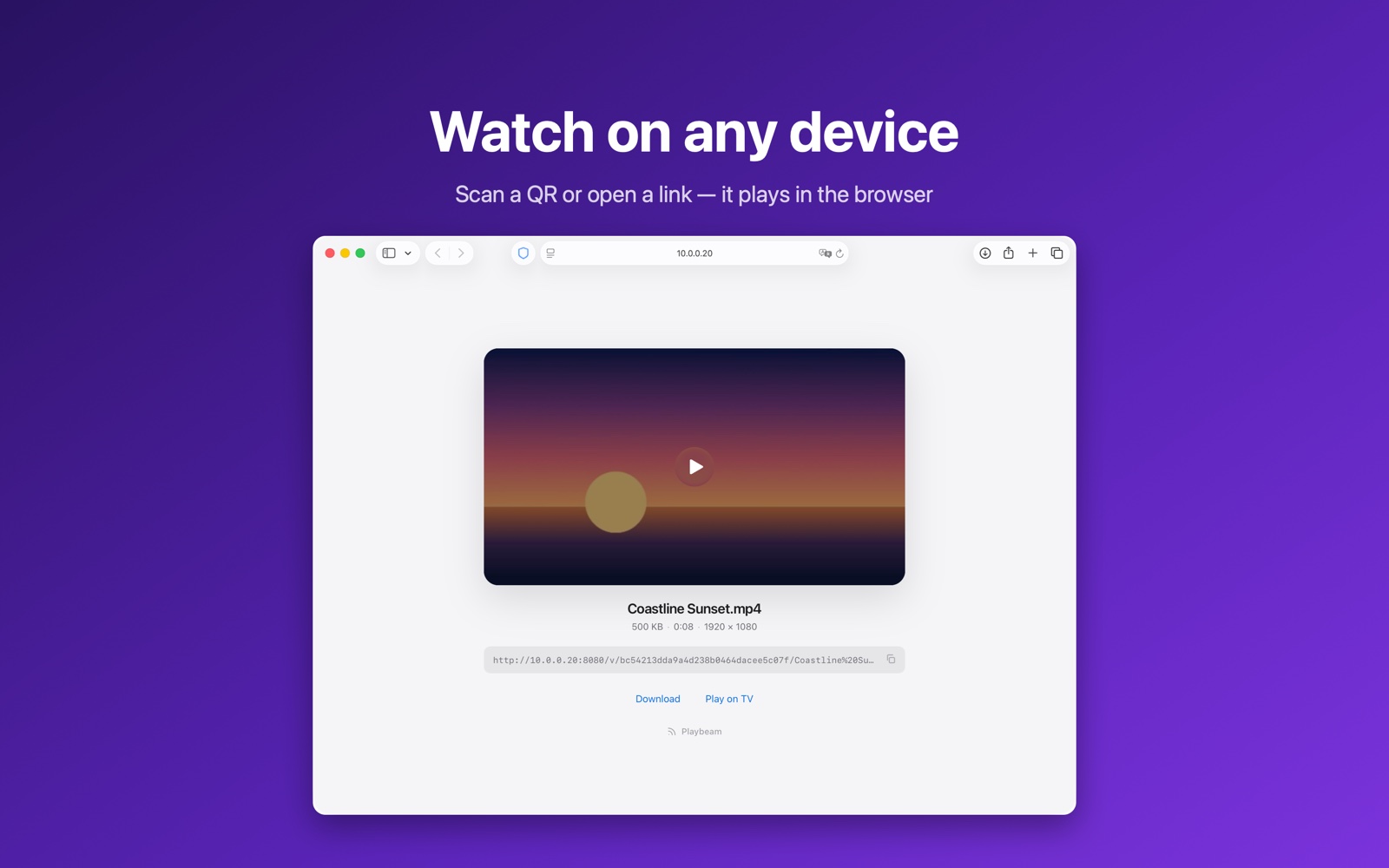
It opens in the browser and plays. Nothing to install on the phone.
Everything else
MP4, MOV, M4V and WebM play right in the browser — iPhone, iPad, Android, laptops and smart TVs. The page remembers where you stopped on each device.
Send an MP4, MOV or M4V to an Apple TV or AirPlay-enabled TV from the menu bar. Other formats reach a TV through Play on TV instead.
Playbeam shows up on its own under “Local Network” in apps like VLC and Infuse, and on smart TVs that browse DLNA servers. They open MKV, AVI, TS, M2TS, MPG and FLV — the formats a browser can’t play.
Drop .srt or .vtt files with your video and each becomes a subtitle track in the browser player’s captions menu.
Large videos stream smoothly and you can scrub anywhere in the timeline — nothing is copied to the phone first.
Right-click a video in Finder and choose Open With › Playbeam, or use the Share Video action in Shortcuts. In English, Arabic, Spanish, French and German.
Pricing
Sharing is free for 10 minutes a day — long enough to check it works on your own Wi‑Fi before you pay anything. Then $9.99 once, not a subscription.
Every feature is in the free version; the limit is time, never features. One unlock covers all your Macs and supports Family Sharing.
Privacy
Playbeam has no cloud. Your video is served straight from your Mac to devices on your own Wi‑Fi. Nothing is uploaded to a server, there are no accounts, no tracking, and no data is collected — it even works with no internet connection at all.
Almost always one of these, in order of likelihood:
No browser can play them — that is a limitation of those formats (and of TS, M2TS, MPG and FLV), not of Playbeam. There are three ways round it: send the file to a smart TV with Play on TV; open VLC, Infuse or your smart TV and find Playbeam under “Local Network”; or use the Download button on the watch page and open it in whatever player you like.
Play on TV needs a TV that supports DLNA and is switched on, on the same network as your Mac. Choose Search Again from the TV menu; if it still says “No TVs found”, check that Playbeam is allowed under System Settings › Privacy & Security › Local Network, and that no VPN is running on the Mac.
If the TV is listed but the video doesn’t start, the TV most likely can’t play that format — Playbeam sends the file as it is and the TV does the playing. An Apple TV doesn’t support DLNA, so it won’t appear here; use the AirPlay button for it.
Video apps remember the list they last loaded from your Mac. Back out and open Playbeam again — in VLC, leave the folder and re-enter it; in Infuse, go back to the Add Files menu. The new video is there. Nothing needs restarting.
That’s how “Local Network” browsing works in every video app, with any media server: the list is only re-read when you open it, so a video swapped out on the Mac won’t appear in a list that’s already on screen.
And if you quit Playbeam while a share was running, its entry can sit in that list for up to half an hour before the app notices it’s gone. It clears itself.
If your Mac changed Wi‑Fi networks, Playbeam stops the share deliberately, so your video isn’t left being served on a network you just joined. Press Restart to share again on the new network.
If you haven’t unlocked yet, it may also be the free daily allowance running out — the popover says so, and it resets tomorrow.
While a share is running and “Discoverable on your network” is on, yes — anyone on that same network can find it in their video app and watch it. That is what makes it work without typing a link. On public or shared Wi‑Fi, turn that switch off in Settings, or simply stop the share when you’re done.
No. On a phone or tablet the video opens in the browser that’s already there, and Play on TV uses what is built into the TV. A video app like VLC or Infuse is only one of the ways to play MKV, AVI and the other formats a browser can’t.
Yes. Playbeam streams over your local network, not the internet, so it can’t send a video to someone in another building. The upside is that it works with no internet connection at all — the Wi‑Fi network on its own is enough.
No. It is served straight from your Mac to the other device. There is no cloud, no account, no tracking, and no data is collected. Nothing leaves your network.
Drop one or more .srt or .vtt files onto Playbeam along with the video. Each becomes a subtitle track named after its file, and you pick one from the player’s own captions menu.
Subtitles don’t travel over AirPlay: the AirPlay button sends the video file itself, and separate subtitle files aren’t part of it. Watch in the browser, or through “Local Network”, if you need them. Infuse is another exception — it doesn’t support subtitles over DLNA at all, so files opened through its “Local Network” list won’t show them. That’s a limitation on Infuse’s end, not Playbeam’s.
MP4, MOV, M4V, WebM, MKV, AVI, TS, M2TS, MTS, MPG, MPEG and FLV. The first four play in a browser; the rest play through Play on TV or a video app, or can be downloaded from the watch page.
MP4, MOV and M4V, to an Apple TV or an AirPlay-enabled TV. Other formats don’t appear with an AirPlay button because macOS can’t send them — those reach a TV through Play on TV, or through “Local Network” in your TV or video app.
No. It is one payment and it never renews. Buy it once and it is yours.
Everything, for 10 minutes of sharing a day. The unlock removes that limit — it doesn’t add features. The free version exists so you can confirm Playbeam works on your own network and your own devices before spending anything.
Open Settings in Playbeam and click Restore Purchase. The unlock is tied to your Apple ID, and it supports Family Sharing.
Try the connection answers above first — most problems are the router or a VPN rather than the app, and they take a minute to fix. Those are your network’s settings, so I can’t fix them for you, but email me if something looks like an actual bug and I’ll look into it. Purchases are handled by Apple, so refunds are requested through them at reportaproblem.apple.com.
Still stuck, or found a bug? Email contact@wasseem.dev with your macOS version and the format you’re sharing. I reply to everything.
Requires macOS 14 or later. Every device has to be on the same Wi‑Fi network — Playbeam streams over your local network, not the internet.